あなたのプロンプト
末尾のハイライト部分は、入力内容とダイヤルから追加されます。プロンプトと食い違う場合は、こちらが優先されます。
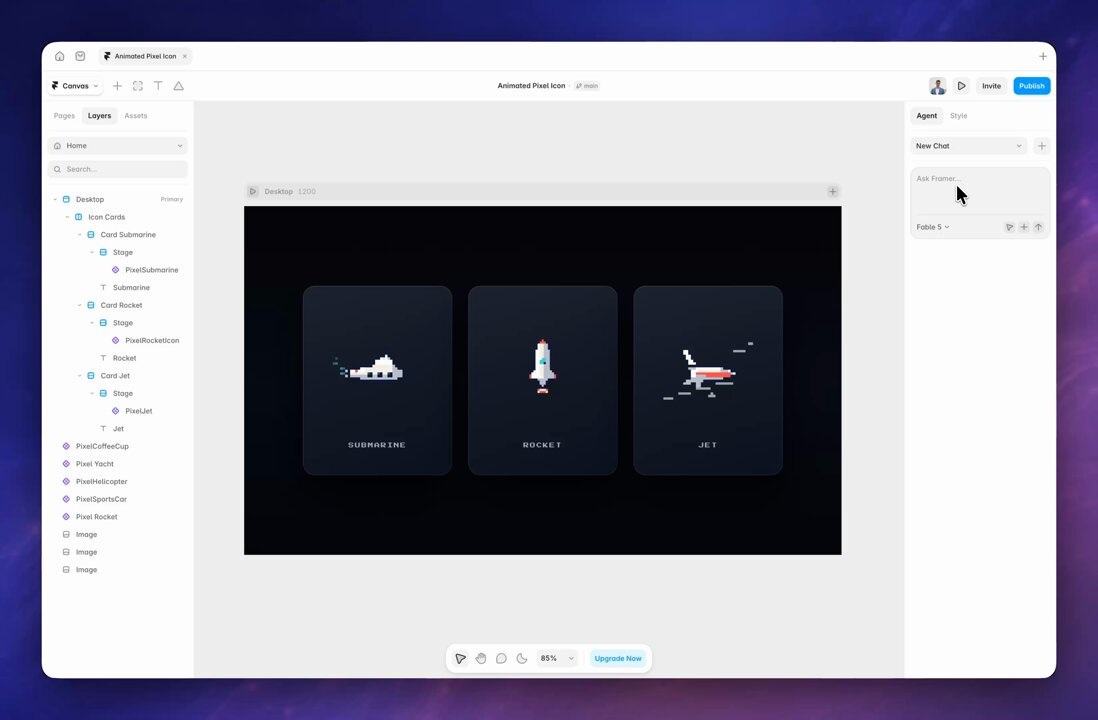
Create one original animated pixel-art icon as a Framer code component. Do not build a page, section, card, background, or reusable icon library. Before building, ask exactly two questions one after another using Framer’s multiple-choice question UI. First ask what the icon should show and provide several examples plus a custom-answer option. Second ask how the icon should animate continuously; base the suggested answers on the chosen subject and include a custom-answer option. After the second answer, immediately create the icon and do not ask about style, colors, size, layout, or technical implementation. Always use the same professional minimalist pixel-art direction: a clean and recognizable silhouette, balanced proportions, consistent pixel thickness, precise outlines, subtle pixel shading, and a polished appearance. Keep symmetrical subjects properly symmetrical and avoid messy, uneven, blurry, overly cute, or cartoon-like results unless explicitly requested. Choose a compact palette of approximately 3–6 colors that naturally fits the selected icon. Prioritize colors mentioned by the user, then colors from an uploaded reference, and otherwise choose an appropriate palette for the subject. Never force the same colors onto every icon. Uploaded images may guide the subject, proportions, palette, and animation idea, but never directly copy or trace protected artwork, logos, branding, code, or distinctive visual details. Draw the icon with Canvas on a logical pixel grid between 24×24 and 48×48 pixels. Use only integer coordinates and integer pixel sizes, disable image smoothing, use pixelated CSS rendering, support devicePixelRatio correctly, and keep the background transparent. Study the selected subject and design a continuous animation that communicates what the object naturally does. Animate meaningful internal parts and supporting details instead of simply scaling, rotating, or moving the entire icon. Keep the main icon visually anchored unless movement is natural for the subject or specifically requested. Never add generic floating, bouncing, or constant up-and-down movement by default. Combine one clear primary action with one or two restrained secondary details, such as moving parts, signals, sparks, particles, light pulses, wheels, flames, scan lines, or status changes. Structure the motion with a short resting phase, action phase, and smooth recovery so the loop remains easy to understand. Make the first and final animation states match perfectly and avoid abrupt resets, jumps, or disappearing pixels. Keep every possible animation state inside the component bounds. Calculate the frame from the combined bounds of all states, add only around 2–3 logical pixels of safety padding, and keep the icon optically centered throughout the animation. Use Framer auto-sizing with @framerSupportedLayoutWidth auto and @framerSupportedLayoutHeight auto so the component frame stays tightly wrapped around the icon. Do not create a full-width frame, oversized wrapper, invisible empty area, or unnecessary padding. Add Framer property controls for display size, primary color, outline color, accent color, animation speed, and animation intensity. Use sensible defaults based on the generated icon. Run the animation through one requestAnimationFrame loop using elapsed time. Store changing values in refs and never update React state on every frame. Do not use setInterval, resize the Canvas during the animation loop, or generate random values inside the loop. Precompute particles and reusable coordinates, keep their paths deterministic, and only update Canvas resolution when the component size or devicePixelRatio changes. Cancel requestAnimationFrame correctly when the component unmounts. Before finishing, verify the icon at multiple sizes and repeatedly test the continuous loop. The final result must be crisp, stable, balanced, smoothly animated, tightly framed, and completely free of flicker, clipping, blur, shaking, accidental gaps, uneven pixels, layout jumps, or visible animation resets.最良の結果を得るには、次のモデルで実行してください: Claude Fable 5.